 Yotei
The problem
Events hide in screenshots, chats and emails
Someone sends an invitation as an image. A flyer shows up in a group chat. A booking confirmation sits in a PDF. Retyping each one takes minutes, and the details are easy to get wrong.
- Read the invitation
- Open your calendar
- Type the title
- Pick the date and time
- Add the place and notes
- Save, and hope nothing is wrong
About 2 minutes, every time
- Press your shortcut
- Drag a box around the event
- Check it and press Add
About 10 seconds
Why Yotei exists
iPhones can do this now. Windows and Mac cannot.
On an iPhone with iOS 26, a screenshot of an event gets an Add to Calendar button. On a Windows PC or a Mac I found no built-in way to select any part of the screen and send it to your calendar. That gap is why I made Yotei.
Free, and fine for one event a week. A few a day and it eats your afternoon.
Best for meetings. Chats, PDFs, flyers and screenshots do not come with one.
iOS 26 covers screenshots on AI-compatible iPhones. It does not help on your computer.
Works in any program on Windows and Mac. Press a shortcut, drag a box, check it, confirm.
I read each vendor's own pages and say what I did not check. See the full comparison with sources.
How it works
Three simple steps. No typing, no hassle.
Select
Press your shortcut anywhere and drag a box around the event, like the Snipping Tool.
Check
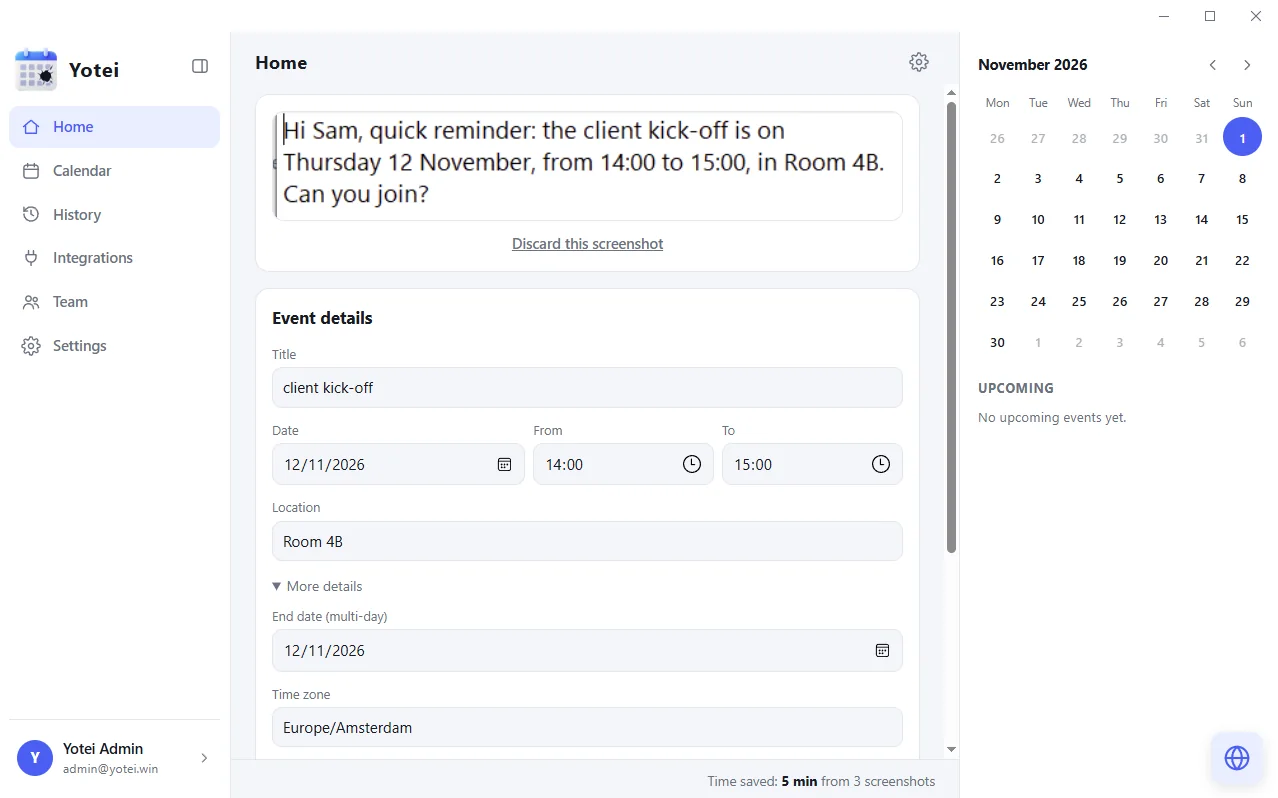
Yotei fills in the title, date, time and place. Fix anything that looks off.
Add
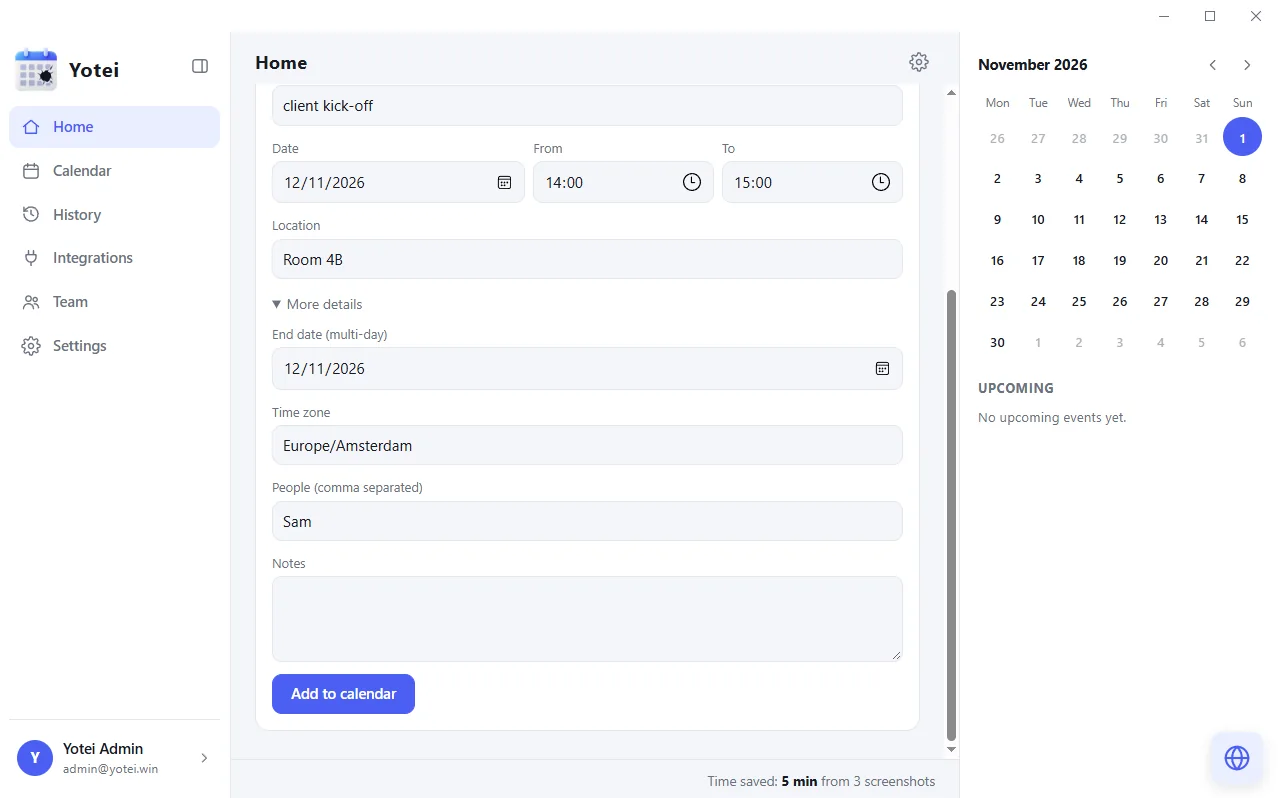
One click adds it to your calendar. Change it later and the calendar updates too.
The real app, on a real screen
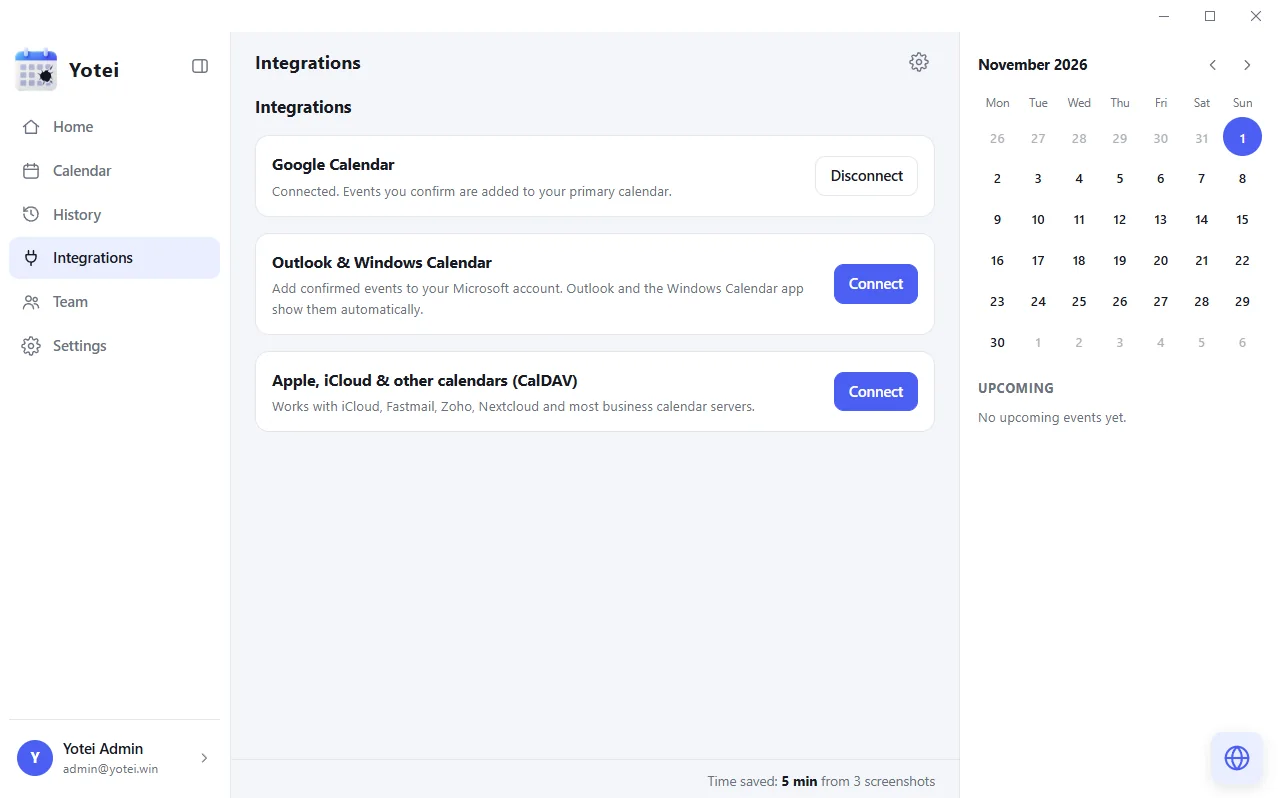
Screenshots of the Yotei desktop app on Windows. The invitation in the capture is a sample.
A closer look
From pixels to a calendar entry
This is what happens between your shortcut and your calendar, in about the time it takes to read this sentence.
Works with the calendar you already use
Connect once, then every confirmed event goes straight in.
-
 Google Calendar and Google Workspace
- Outlook, Microsoft 365 and Windows Calendar
- Apple iCloud Calendar
- Fastmail, Zoho, Yahoo and Nextcloud
- Any other app, through a calendar file
Add it, edit it, keep it in sync
Change a time in Yotei and the same event in your calendar changes. No duplicates.
Only what you confirm
Yotei asks for the narrowest permission each calendar offers and never reads your other events.
No calendar? No problem
Without a connection Yotei opens the event in your default calendar app.
Use cases
Wherever an event shows up
Invitations pasted in chat, shared screens, webinar slides.
Agendas and session lists from event sites and apps.
Timetables, exam dates and course schedules.
Flight, train and hotel confirmations with dates and times.
Party invitations, flyers and group chat plans.
Reminder texts and emails from clinics and services.
Why people use Yotei
From shortcut to calendar in seconds, without leaving what you are doing.
The details are shown to you first. Fix anything, then confirm. Nothing is added blindly.
Edit or reschedule later in Yotei. Stop automatic reading any time.
Yotei only looks at the area you select, only when you press the shortcut.
Free calendar tools, no account needed
Small tools that run in your browser. Nothing is uploaded, and there is nothing to sign up for.
Paste an invitation or a schedule and download a calendar file.
Fill in a form for any event and download the file.
Turn a message into a calendar entry and open it in Google or Outlook.
Paste an email invitation and make a calendar file.
Turn a spreadsheet into one calendar file.
Check a calendar file for errors before you send it.
Google, Outlook and Yahoo links and a button for your site.
Try the screen reading on sample chats and emails. Nothing to install.
Turn a calendar file into a spreadsheet table.
Combine several calendar files into one.
Remove places, notes, guests and links before you share a file.
Ways to turn a picture of an event into a calendar entry.
Screenshots are used only to find the event. They are deleted as soon as you confirm, or within 48 hours. We only create the events you confirm and never read your other events. See the privacy policy.
- Asks for your agreement before the first capture, and you can withdraw it any time
- Calendar logins are encrypted, and each account works on a limited number of devices
- Ask for a copy of everything we hold about you, or delete your account, in a few clicks
- Built to meet the EU GDPR and other data protection laws
Questions people ask
How do I add a screenshot to my calendar?
Press the Yotei shortcut, drag a box over the event on your screen, check the title, date, time and place it read, and confirm. It goes into your calendar without you typing it. See the guides for Google Calendar setup and Outlook setup.
Does it work with Google Calendar and Outlook?
Yes. Confirmed events go into Google Calendar, Outlook, Microsoft 365 and iCloud. Other calendar apps work through calendar files.
Does it work on Windows and Mac?
Yes, both. Yotei is a desktop app, so it reads what is on your screen in any program. See Yotei for Windows and Yotei for Mac.
Does my iPhone not do this already?
On an AI-compatible iPhone with iOS 26, a screenshot of an event gets an Add to Calendar button. Windows and Mac have no built-in equivalent, which is the gap Yotei fills. Our app comparison covers the other options.
What happens to my screenshot?
Only the box you drag is read. You see what Yotei read before anything is added, and the screenshot is deleted when you confirm, or within 48 hours.
Is it free?
You can try Yotei free, with no card. See pricing for what the free plan includes and for the paid plans.