 Yotei
YoteiBlog · 2026-10-30 (updated 2026-10-31)
How to Automatically Add Events to Your Calendar

You can automatically add events to your calendar in two ways. First, switch on the built-in settings in Google Calendar, Gmail and Outlook, which handle email invitations and many booking confirmations. Second, for events that live in chats, PDFs, flyers and slides, use a capture tool that turns what is on your screen into an entry. Most people need both, because no single setting covers every place an event can show up.
Below you will find the exact settings to check, what they do and do not catch, how to avoid duplicates and wrong time zones, and how to handle class schedules and travel plans.
Yotei turns an event on your screen into a calendar entry you review first. See how it works
TL;DR
- Google Calendar can add invitations automatically, but you choose who qualifies: everyone, only known senders, or only after you reply.
- Gmail can create events from flight, hotel and reservation emails on its own. It does not read flyers, chat messages or PDFs you receive elsewhere.
- Outlook can auto-accept meeting requests, but that also means a busy calendar fills up without your review. Use it narrowly.
- For events on your screen, a screenshot-to-calendar tool like Yotei lets you select the area, check the details and add the event in one click.
- Whatever you automate, review the title, date, time zone and location before the event is saved, and watch for duplicates.
Table of Contents
- Where events actually come from
- Automatically add invitations in Google Calendar
- Let Gmail add confirmations for you
- Can Outlook accept invites automatically?
- Events that no setting will catch
- How to turn class schedules and exam dates into events
- Travel confirmations and appointments
- Check before you save: duplicates, time zones and errors
- Privacy and permissions to check first
- Our perspective
- Using Yotei for the events built-in settings miss
- A simple setup that covers most cases
- FAQ
- Sources
Where events actually come from
The phrase “add events automatically” covers very different situations, and the right tool depends on the source.
| Where the event shows up | Built-in automation | What is left to do by hand |
|---|---|---|
| Calendar invitation by email (Google or Outlook) | Yes, through invitation settings | Decide who is trusted |
| Flight, hotel, restaurant, ticket confirmation in Gmail | Yes, Gmail creates events | Check details after rescheduling |
| Meeting invite in a chat app | Rarely | Copy title, date and time |
| PDF schedule, syllabus, appointment letter | No | Retype every entry |
| Event flyer or social post | No | Retype every entry |
| Slide with a date and time | No | Retype every entry |
The top half of that table is solved by settings. The bottom half is where people lose time, and where a capture tool earns its place.
Automatically add invitations in Google Calendar
Google Calendar decides whether an emailed invitation lands on your calendar without you touching it. The setting lives under Settings, then Event settings, then “Add invitations to my calendar.” You get three choices.
- Add all invitations automatically. Every invitation appears on your calendar, including ones from strangers.
- Only if the sender is known. Events are added when the sender is in your contacts, in your organization or someone you have interacted with before. One university’s IT guide recommends this option and notes that if an event is not added, you still get the invitation email and the event is added once you accept it.
- When I respond to the invitation in email. Nothing is added until you click yes, maybe or no.
For most people, the known-sender option is the sensible default: trusted colleagues and friends appear instantly, and unsolicited invitations wait for you. If you pick “all invitations,” expect spam events to show up eventually, so only do it if you can live with cleaning up now and then.
Inviting other people to the events you add
A common follow-up is adding a spouse, friends or teammates to events that were created automatically. Automatic creation usually gives you a plain event on your own calendar, so guests are added afterward by editing the event. If you do this for every event of one type, a recurring habit like a weekly team call is better handled by creating the event once with guests and making it repeat.
Let Gmail add confirmations for you
Gmail has a separate feature that has nothing to do with invitations. When it detects an eligible email, such as a flight, hotel or restaurant reservation or a ticket, it creates the calendar entry itself. According to a summary of Google’s guidance, these events show key details such as time, location and confirmation number with a link back to the email, they update if the booking changes, and by default only the calendar owner sees them.
The same summary says the feature is on by default in most countries and can be managed or disabled in your settings. If a trip confirmation never showed up on your calendar, check that this smart feature is enabled for your account.
Two limits matter here:
- It reads email in Gmail. A booking confirmation that arrives as a PDF attachment from another account, a screenshot sent in a messaging app or a printed itinerary you photographed will not be picked up.
- It only handles formats Google recognizes. A dentist’s note, a school newsletter or a friend’s “Saturday, 7 pm, my place” is not a structured reservation.
Building your own email-to-calendar pipeline
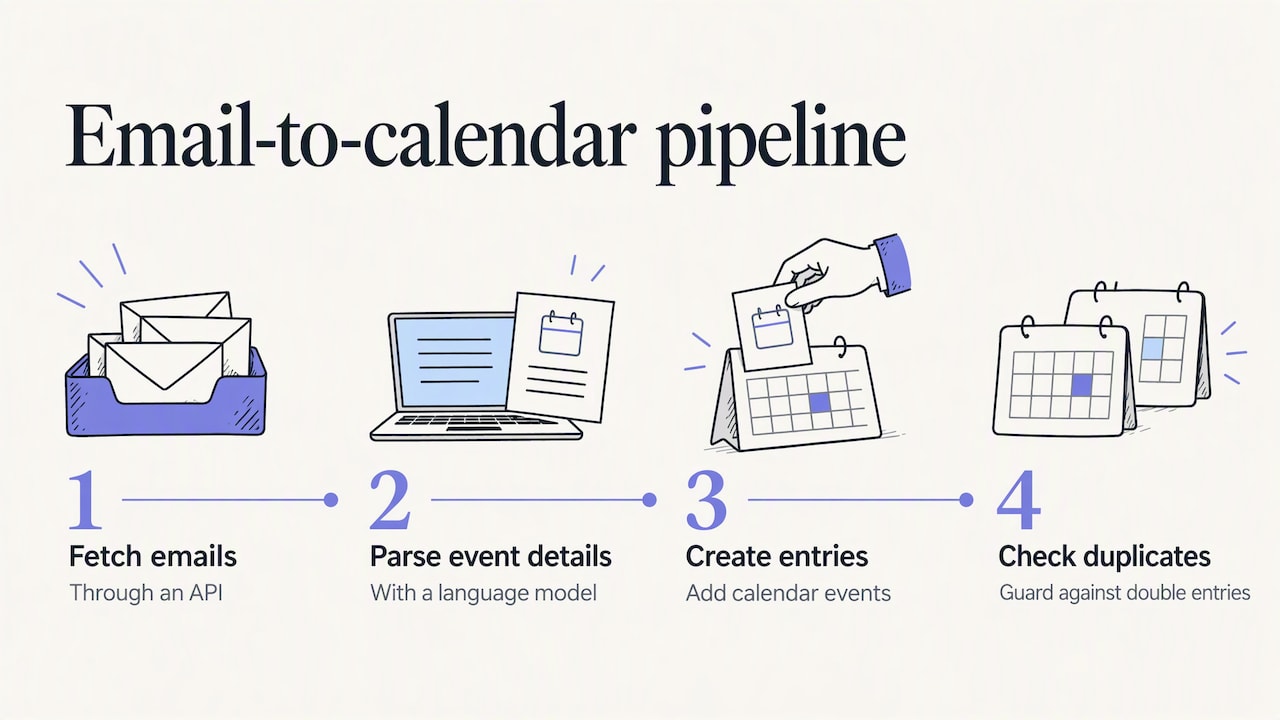
Developers sometimes go further and write scripts. One open-source example, an email-to-calendar project on GitHub, fetches emails through an API, uses a language model to parse the event details, creates the calendar entries and tries to detect duplicates. It is a good illustration of what “automatic” really involves: reading messy text, guessing structured fields and guarding against double entries. If you are not writing code, you do not need this, but it explains why unattended automation is risky when the source text is ambiguous.
Can Outlook accept invites automatically?
Yes. Outlook has had an option to automatically accept or decline meeting requests for a long time. A guide to the feature explains that the built-in setting is in the classic desktop client and syncs with Exchange calendar processing, and that you can also use inbox rules, scripts or Power Automate for more control.
What happens when an invitation is accepted automatically:
- The meeting goes on your calendar as accepted.
- The organizer sees you as attending, even if you never looked at the invitation.
- Conflicts are not resolved for you unless you configure that, so double bookings are possible.
That is why auto-accept suits resources such as a conference room or a person whose calendar is managed by an assistant. For your own calendar, a rule limited to a particular sender or a specific type of message is safer than accepting everything. If you work in Microsoft 365 at a company, your administrator may also control some of these options, so ask IT before changing them.
Events that no setting will catch
Most of what clutters a real week never arrives as a calendar invitation:
- A friend texts “dinner Thursday 7:30 at Lupa” in a group chat.
- A school emails a PDF with parent-teacher conference slots.
- A colleague shares a slide with the date of the quarterly review.
- A flyer on social media announces a neighborhood event.
- A clinic sends an appointment card as an image.
The usual workaround is to copy the date, switch to your calendar, create an event, paste the title, set the time, fix the time zone and add the location. That is six to eight small actions per event, and it is exactly the sort of task people postpone and then forget.
The screenshot approach
A capture tool shortens this to a few seconds. The flow we built Yotei around is:
- Press a keyboard shortcut.
- Drag a box around the part of the screen that contains the event.
- Review the extracted title, date, time, location and notes.
- Click once to add it to your calendar.
Because the event is read from the pixels you selected, it does not matter whether the source is a chat window, a PDF viewer, a browser tab, a slide deck or a photo of a flyer. The same four steps work everywhere.
How to turn class schedules and exam dates into events
Schedules are the heaviest version of the problem, because one document can hold dozens of dates.
A practical routine for students:
- Work in batches by semester start. Open the syllabus or timetable the day you receive it, not the week before the first exam.
- Capture one row or block at a time. Select a single class meeting or exam line instead of an entire page, so each entry has a clean title and time.
- Use recurrence for weekly classes. If a lecture meets every Tuesday and Thursday at 10:00, create it once as a repeating event rather than every week. Then add exams and deadlines as separate one-off events.
- Put the room in the location field. It is what your phone shows when you glance at it between buildings.
- Give assignments a reminder. A due date with a reminder the day before is more useful than a due date alone.
The same logic works for professionals with a training calendar or a conference agenda: capture the sessions you actually plan to attend, not the full program.
Travel confirmations and appointments
Travelers have a head start thanks to Gmail’s reservation detection, but trips are rarely that tidy. A rental car voucher in a PDF, a tour confirmation from a small operator, a ferry ticket in an app screenshot: none of these is guaranteed to be read automatically.
What to check on every travel entry:
- Time zone. A flight departing at 6:40 is in the departure city’s local time. Make sure the entry is set to that zone, and that arrival is not shifted.
- Date change at midnight. Overnight flights and late check-ins are where wrong dates creep in.
- Confirmation number. Put it in the notes so you do not search your inbox at the airport.
- Address. Paste the full address into the location field so a map link works.
Check before you save: duplicates, time zones and errors
Automation saves time only if you can trust the result. Any tool that extracts a date from text can misread it. “3/4” means March 4 in the US and 3 April in much of the world. “Friday at 5” depends on where the sender lives.
A short checklist:
- Read the title. Extracted titles can be too long or pick up a greeting. Shorten them to what you will recognize at a glance.
- Confirm the date format. Look at the month name on the screen, not just the numerals.
- Check the time zone. Especially for online events hosted elsewhere, when the source says “9 am CET” or “2 pm PT.”
- Look for an existing entry. If Gmail already added the reservation, adding it again creates a duplicate.
- Review the end time. Many sources only give a start time, and a default one-hour length may be wrong.
Developers face the same duplicate problem at scale. Google’s documentation for creating events describes setting custom event IDs so that entries tied to records in your own database are not created twice. The GitHub project mentioned above takes another route, using similarity matching and time-proximity detection to spot likely duplicates. Both approaches say the same thing: a reliable system needs a way to recognize an event it has already seen. For a person, that means a quick glance at the day before you press save.
Privacy and permissions to check first
Calendar automation touches personal information: where you will be, with whom and when. Before using any tool, ask:
- What does it read? A tool that scans your whole inbox or screen is very different from one that reads only an area you select.
- Does it run in the background? Always-on monitoring means it sees things you did not choose to share.
- What permissions does it request from your calendar account? Grant only what is needed to create and edit events.
- Where is data stored and for how long? Look for stated retention periods, encryption and the hosting location.
- Do you confirm each event? A confirmation step stops a misread from becoming a wrong appointment.
- Who can see the entries? Gmail-created events, for example, are visible only to the calendar owner by default, per the guidance summarized above. Check the visibility of anything you create, particularly on shared work calendars.
If you use a work account, also follow your employer’s policy before connecting third-party apps.
Our perspective
We built Yotei on a simple observation: the events people forget are rarely the ones that arrive as neat calendar invitations. They arrive as a message in a chat, a line in a PDF or a flyer on a screen, and the gap between seeing them and saving them is where plans fall apart.
That is why we do not think the answer is a tool that quietly watches everything and fills your calendar. We think it is a tool that does one job when you ask. Yotei captures only the area you select, does not monitor your screen in the background and asks you to confirm before it creates anything. You see the title, date, time, location and notes first, and you decide.
We also believe control should extend past the first click. If a plan changes, edits can be synchronized, so your calendar reflects the updated details. On privacy, we built Yotei to meet the GDPR: calendar connection tokens are stored encrypted, the servers are in Germany, and screenshots are deleted as soon as you confirm the event, or within 48 hours if you do not.
Pair your calendar’s built-in settings with a capture step for everything else, and you cover almost every way an event can reach you.
Omar Salloum, founder of Yotei
Using Yotei for the events built-in settings miss
If you already use the invitation and confirmation settings above, Yotei fills the remaining gap: invitations in chats, PDFs, travel confirmations, class schedules, meeting slides, appointments and social event flyers. It works with Google Calendar, Google Workspace, Outlook, Microsoft 365, Windows Calendar, Apple iCloud Calendar, Fastmail, Zoho, Yahoo and Nextcloud, and with other calendar apps through calendar files.
The Individual plan is €4.99 per month or €49.99 per year per person. Team plans for up to 5 or up to 50 people are listed on the Yotei pricing page. You can also see how the capture flow works on the Yotei screenshot-to-calendar page.
A simple setup that covers most cases
If you want a working system today, do this in order:
- In Google Calendar, set invitations to be added for known senders only.
- Confirm Gmail’s event-from-email feature is on if you use Gmail for bookings.
- In Outlook, avoid blanket auto-accept; if you need it, restrict it by sender or rule.
- Pick one capture method for everything else and use it every time, so entries are not split between your memory and your calendar.
- Review each entry for title, time zone and duplicates before saving.
- Once a week, scan the next seven days to catch anything that slipped through.
The point of the setup is not to remove yourself from the process. It is to remove the retyping and keep the one step that matters: a quick human check.
FAQ
How do I automatically add events to Google Calendar?
Open Calendar settings, go to Event settings and choose how invitations are added: all, known senders only, or after you reply. Gmail also creates events from reservation and ticket emails on its own when that feature is enabled. For events in chats, PDFs or flyers, you need a capture step, since those are not read automatically.
Can Outlook automatically accept calendar invites?
Yes. Outlook can auto-accept meeting requests through a built-in option or through rules and automation, and the organizer then sees you as attending. Because accepted meetings can overlap without your review, limit it to specific senders or resources where possible.
Can I add an event from a screenshot or PDF without typing it?
Yes. A screenshot-to-calendar tool lets you select the part of the screen with the event, extracts the title, date, time, location and notes, and lets you confirm before it is saved. That works for PDFs, images, chats and slides alike.
How do I avoid duplicate events?
Check whether the event is already on your calendar before adding it, especially for travel bookings that Gmail may have added. Keep the source of each entry consistent, and review the date and time before you save.
Is it safe to let an app read my screen for events?
Look at what it reads, how long it keeps it and whether it asks for confirmation. A tool that captures only the area you select, does not watch in the background, stores calendar connections encrypted and deletes screenshots as soon as you confirm keeps your exposure small.
Sources
- Manage Invitations in Google Calendar (The New School IT)
- Google Highlights How Gmail Events Are Automatically Added to Calendar (Small Business Trends)
- How to Automatically Accept Calendar Invites in Outlook (TheITBros)
- Create events, Google Calendar API (Google for Developers)
- email-to-calendar (GitHub)
Recommended
By Omar Salloum, founder of Yotei (KD Digital).